Prepare Print Files: Get Pixels, Size and Resolution Right
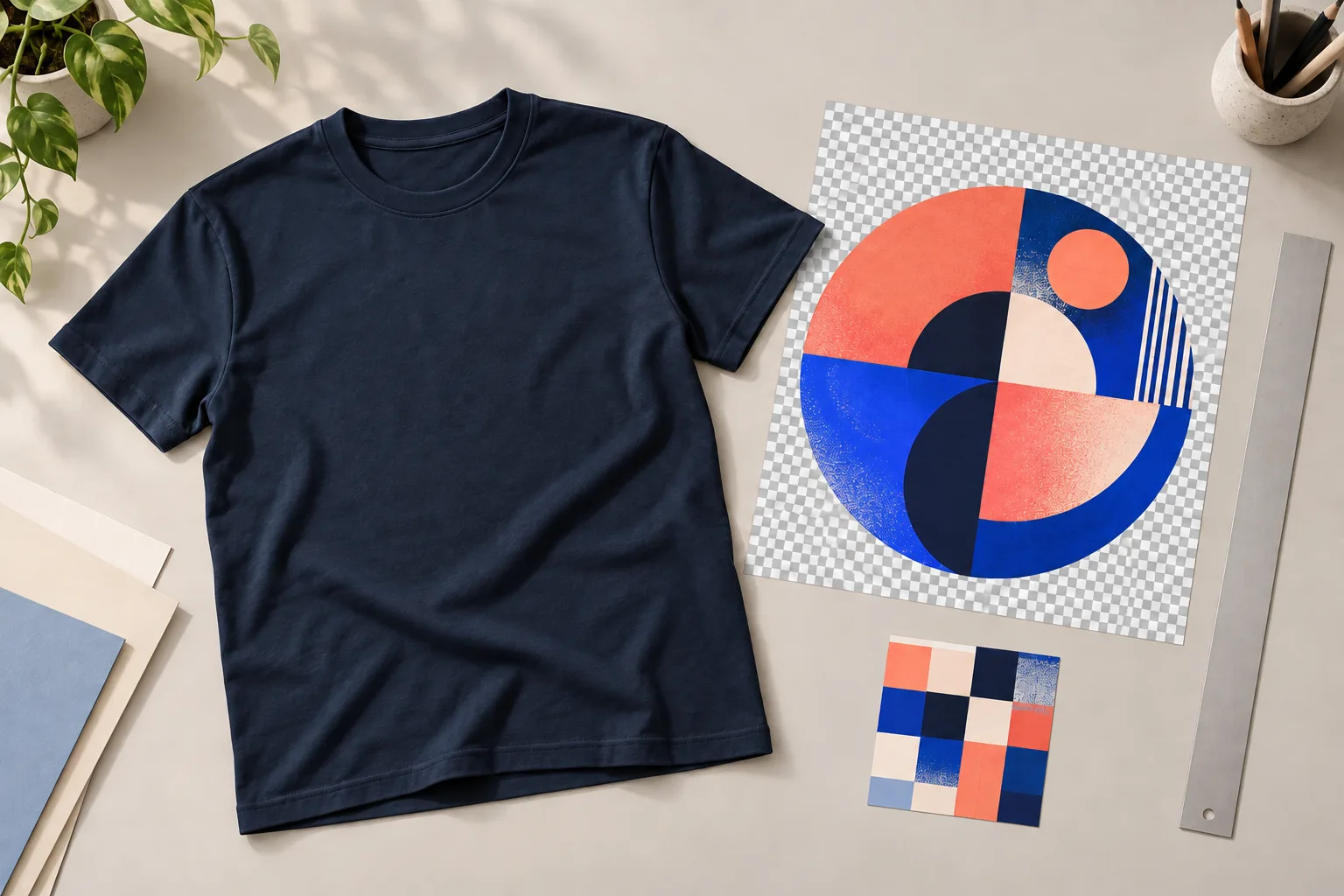
Artwork can look crisp on your screen and still produce an untidy result on a T-shirt. The issue often starts in the file: too few pixels, an unwanted background or a placement that does not suit the product. A repeatable checking process helps you catch these problems before your design becomes a listing in your store.
Start with the exact product you intend to sell. File formats, colour requirements, print areas and resolution recommendations can vary by provider, printing method and item. The calculations below explain how the numbers work. They do not replace the instructions supplied for your chosen product.
1. Decide how large the artwork should appear
Set the intended width and height of the design on the finished item. A small chest graphic needs a different layout from a large back print. Record the print position and product variant alongside those dimensions. This makes it harder to accidentally reuse a file for the wrong placement later.
Distinguish the size of your canvas from the size of the visible artwork. A file may include generous transparent margins, so its overall width does not necessarily equal the visible print width. Whether those margins help position the artwork or create problems depends on the upload workflow. Follow its template and check the resulting preview.
2. Connect pixel dimensions to physical print size
Pixels are the individual picture elements in a raster image. PPI describes how many image pixels fit into one printed inch. DPI technically describes a printer's output dots, although print-file instructions often use the term when discussing image resolution.
To calculate the required pixel width, divide centimetres by 2.54 and multiply by the target PPI. Repeat for the height. If a particular specification asks for 300 PPI at the final size, examples rounded up to whole pixels are:
- 10 × 10 cm: approximately 1,182 × 1,182 pixels.
- 25 × 30 cm: approximately 2,953 × 3,544 pixels.
- 30 × 40 cm: approximately 3,544 × 4,725 pixels.
These examples are calculations, not a universal requirement to use 300 PPI. Check the specification for the item. Simply changing the resolution setting of a small image does not create additional image detail. Work from a high-quality original and inspect any enlargement carefully.
3. Inspect edges, backgrounds and small details
Reopen your exported file and examine it at 100% zoom. Look for rough edges, pale outlines around cut-out artwork and stray pixels. Temporarily place a light background and then a dark background behind the design. This reveals defects that can disappear against a white editing canvas.
Check thin lines and small lettering at their intended physical size. Something that looks readable when enlarged on your monitor may be difficult to understand on a garment. A paper printout at actual size can help you judge proportions. Treat it as a scale reference rather than an accurate proof of textile colour or print appearance.
Semi-transparent shadows and soft fades also deserve attention. Check whether the chosen process supports the effect as intended, then assess it on a sample. A screen preview alone cannot show how the ink, fabric and garment colour will interact.
4. Export for the specific production workflow
Keep an editable master and create a separate production export. Choose the format, colour profile and transparency settings required by the relevant instructions. PNG can retain transparency, for example, while JPEG cannot store a transparent background. That does not make one format the correct choice for every product.
After exporting, check the actual pixel dimensions and file size. Confirm that fonts, embedded images and effects have been reproduced correctly. A vector master can remain useful even when the uploader requires a raster file. Use filenames that identify the design, product, placement, intended width and version. Names such as “final_new_2” become confusing as soon as several products need updates.
5. Connect your upload checks to your sample order
Compare the uploaded version with the export. Check the artwork, orientation, scale and print side. Review every garment colour, especially when moving between light and dark fabrics. An outline that works well on black may disappear on white.
Before ordering a sample, record the product identifier, colour, size, filename and placement. Those details let you trace the result if anything changes. Where possible, change one important variable at a time so you can identify which adjustment improved the outcome.
Choose the relevant item from the Shirtee.Cloud product overview and check its current requirements. If a file specification is unclear, use Shirtee.Cloud's contact page to ask a focused question. A carefully checked, clearly named export gives you a reliable starting point for future products and revisions.