One design, several poster formats: Plan crops and borders deliberately
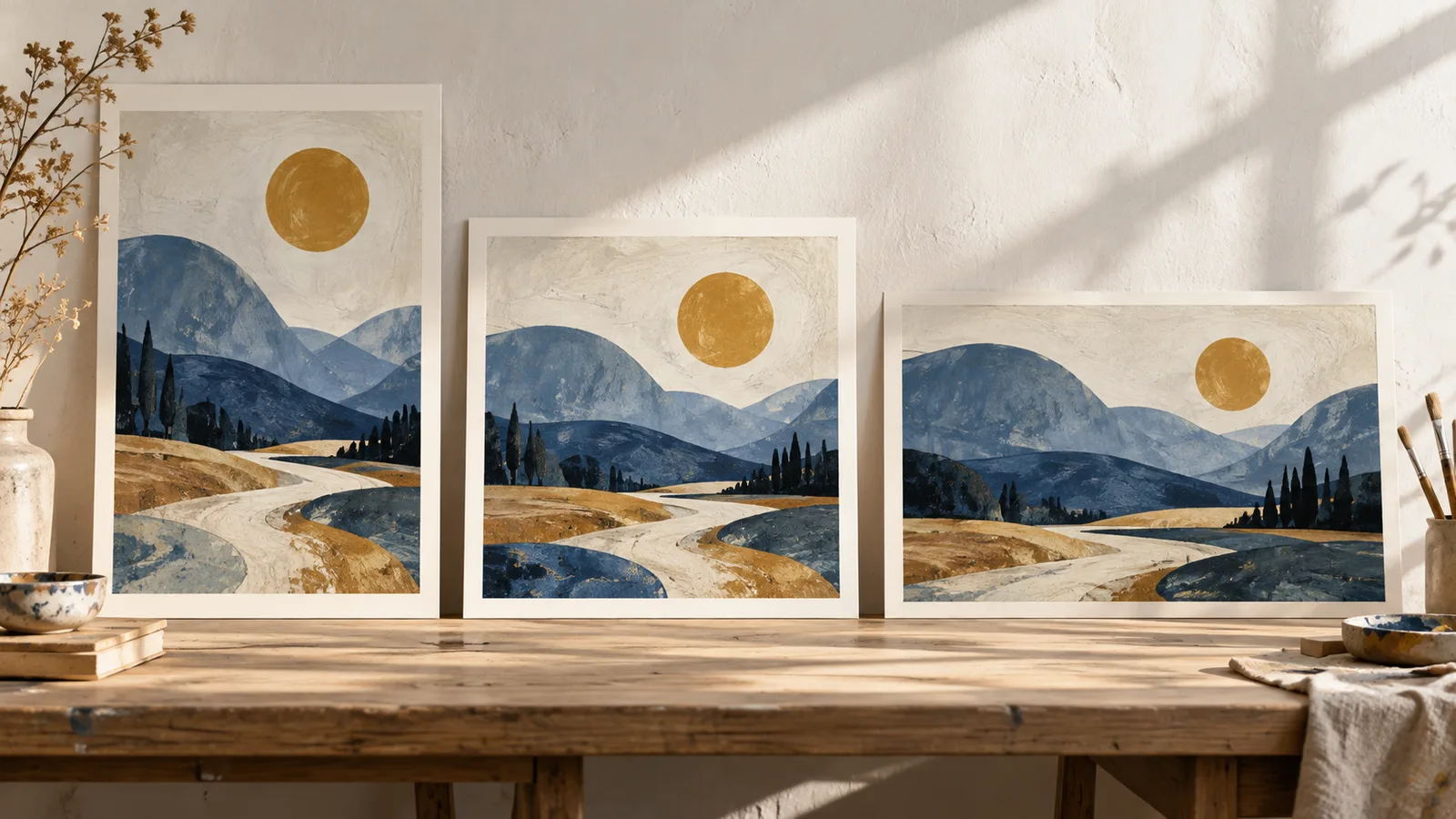
One design cannot always move unchanged between poster formats. When the aspect ratio changes, you need to choose between a different crop, extra borders or a rearranged composition. More pixels do not solve that problem: they affect resolution, not the shape of the image area.
Plan the composition first and prepare the technical print file afterwards. This is useful when you want to develop several formats from one illustration or photograph. The dimensions below are original design calculations, not confirmation that those variants are available in the current Shirtee.Cloud catalogue.
How do size and aspect ratio differ?
Size describes the actual dimensions, such as 30 × 40 centimetres. Aspect ratio describes only the relationship between width and height. Both 30 × 40 and 45 × 60 centimetres have a 3:4 ratio. You can enlarge the composition proportionally, but you still need to check resolution separately.
A 40 × 50-centimetre area has a 4:5 ratio. It is wider relative to its height. A design created for 3:4 therefore cannot simultaneously remain undistorted, fully visible and borderless within 4:5. You need to decide which condition to change.
Write dimensions in the same order throughout your records: width × height. That helps prevent a planned portrait image from becoming a landscape export. Record orientation and aspect ratio in your file list as well as the physical size.
Three options for the same original artwork
Imagine an original landscape illustration: a path at the bottom, hills above it and a small sun near the top edge. Your starting file measures 3000 × 4000 pixels, giving it a 3:4 ratio. You could develop three different versions:
| Target | Design decision | Calculated result in this example |
|---|---|---|
| 3:4 | Scale proportionally | The complete original crop remains visible |
| 4:5, borderless | Keep the full width and remove height | 3000 × 3750 pixels; 250 pixels removed in total |
| 1:1, borderless | Choose a square crop | 3000 × 3000 pixels; 1000 pixels removed in total |
The table describes image crops without additional print bleed. A centred 4:5 crop removes 125 pixels from both the top and bottom, totalling 6.25% of the original height. The centred square removes 500 pixels from each edge, or 25% in total. A sun close to the top could disappear.
The numbers do not decide which crop looks better. They reveal the consequences of an automatic adjustment. Move the crop deliberately if a particular detail must remain, and check what disappears from the opposite edge as a result.
When is a border the better choice?
If every part of the artwork needs to remain visible, place the full illustration inside the differently proportioned area. At 50 centimetres high, a 3:4 design is 37.5 centimetres wide. On a 40 × 50-centimetre area, that leaves 1.25 centimetres on each side.
This is a geometric design exercise, not a finished production template. Decide whether the side areas should be white, coloured or part of an intentional frame within the artwork. A border should look like a considered choice rather than an image placed too small by mistake.
Compare the collection together, too. A bordered and a borderless image can appear different in size even when their outer dimensions match. Show the actual version in your product imagery rather than reusing one mockup for every crop.
If you decide to rearrange the illustration instead, retain a separate version. Moving the sun or extending the background creates a new composition. It should be reviewed as such, rather than treated as a purely technical resize.
Cropping and print bleed are different decisions
Cropping determines which part of an image is visible. Print bleed is extra artwork outside the intended finished dimensions, used when the print is trimmed. A safety margin keeps important details away from critical edges. Check these three decisions separately.
Use the valid requirements for the product you actually select when preparing the final print file. Check finished dimensions, additional bleed and the safety margin separately. If you do not yet have the requirements for your planned Shirtee.Cloud configuration, clarify them before export. The geometric calculations in this article do not replace a product-specific print template.
Avoid simply subtracting the same number of millimetres from every visible design. Establish the finished dimensions, required bleed and safety area first. Signatures or fine lines near an edge particularly need their final position checked against the actual template.
Review each format as its own version
Create a separate working area for each aspect ratio. Keep the original illustration unchanged and name the variants clearly, for example landscape-3x4-v1 and landscape-4x5-v1. If you rearrange elements, record that as a separate design version.
Compare the versions side by side. Is the path still recognisable? Does the sun have enough space around it? Is the square composition balanced? Then check the resolution of the print file. A well-chosen crop can still contain too few pixels for the intended output size.
Make the offered crop and borders clear in your mockups and product photographs. Finally, assess a sample of the selected configuration. Customers can then choose a format based on its actual composition, rather than discovering a missing detail when they open the parcel.
AI-generated illustration of format variants; not a scale drawing of the calculations or a real studio.